
Dental implant software
Dental implant software for planning and surgical guide design
GuideMia dental implant software takes a case from CBCT to a printed surgical guide in one project: segment bone and nerve, place implants against real bone density, design the guide, and export it to the printer or mill you already own.
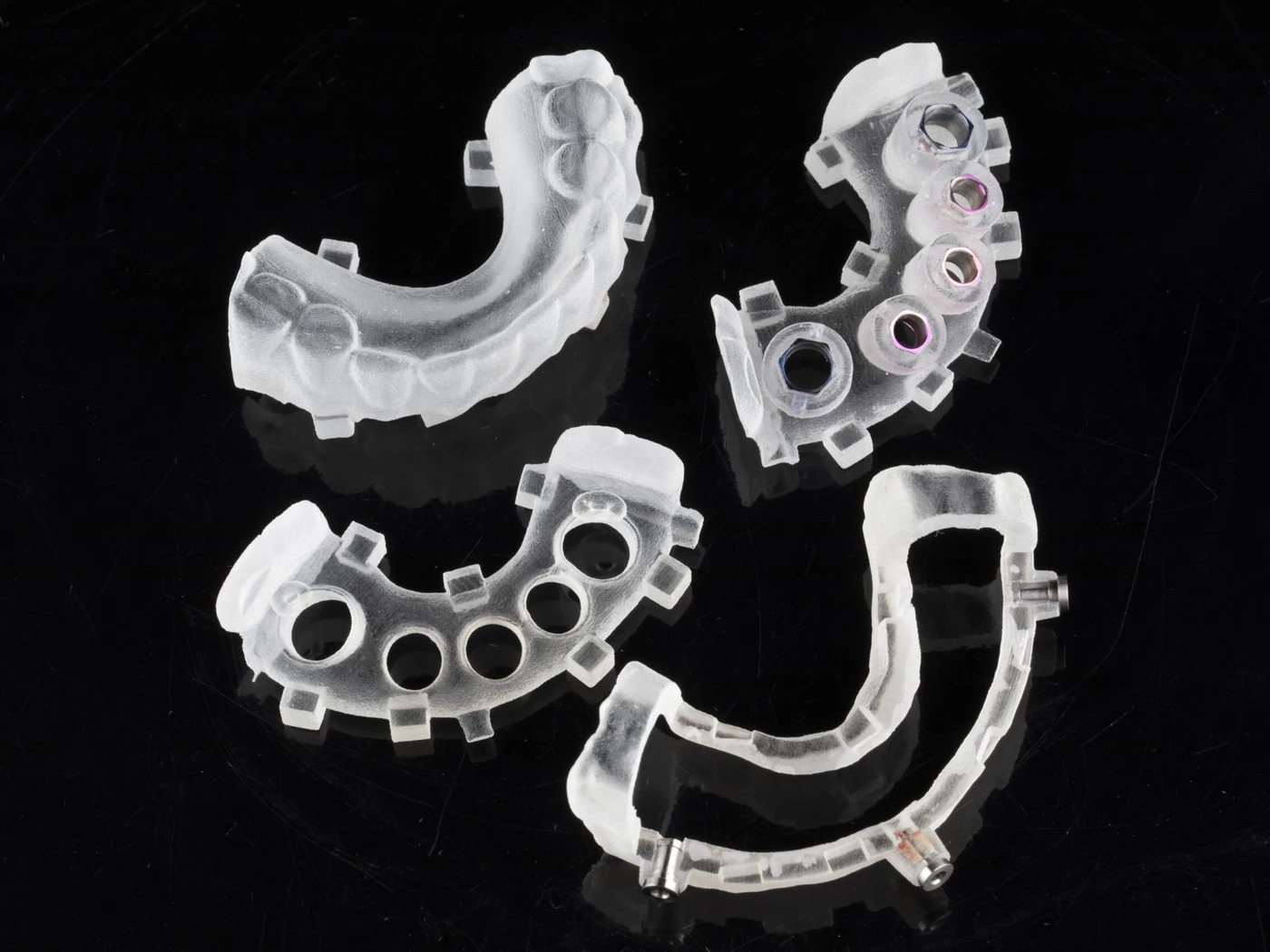
Dental implant software has two jobs. The first is diagnostic: read the CBCT, separate bone from soft tissue, trace the inferior alveolar nerve and the sinus floor, and register the intra-oral scan so the plan sits on the patient rather than on bone alone. The second is manufacturing: turn the approved implant positions into a surgical guide that seats, holds the sleeve at the planned angle and depth, and prints on ordinary equipment. GuideMia Implant Master, dental implant software since 2012, does both in the same project file, so a change to the plan is a change the guide sees.
It is also open. The dental implant software you choose should not decide which CBCT scanner, implant brand, surgical kit or printer you buy next. Implant Master reads DICOM from any CBCT system, carries an implant library that covers the major systems and accepts additions, designs guides for any guided kit, and exports STL that any printer or mill will take. GuideMia Implant Master is FDA 510(k) cleared (K121466) and is developed under an ISO 13485 certified quality system.
What the dental implant software does
- Reads DICOM from any CBCT system and registers intra-oral, desktop and facial scans to it
- Segments bone, roots and soft tissue, with AI segmentation of the CBCT volume, and traces the nerve canal
- Shows bone density at the implant site and checks distance to the nerve, the sinus and adjacent roots
- Places implants, abutments and scan bodies from an open library covering the major systems
- Designs tooth-borne, tissue-borne, bone-supported and bone-reduction guides, with sleeves matched to your surgical kit
- Exports STL for surgical guides, reduction guides, verification jigs and restoration models to any printer or mill
A guided implant case, step by step
The same five steps whether the case is a single premolar or a full-arch immediate load.
01
Import
Load the CBCT DICOM folder and the intra-oral or model scan. Radiographic markers and scan bodies are recognised automatically and the scan registers to the bone.
02
Segment
Bone, teeth and soft tissue come out as separate models. Trace the inferior alveolar nerve and mark the sinus floor; where the AI is unsure, correct it on the slice.
03
Place
Position each implant against the bone density map with the planned restoration in view. Check angulation, depth and the safety distance to nerve and roots.
04
Design
Choose the guide type, set the sleeve for your kit, add windows and retention, and let the dental implant software build the guide body around the seated surfaces.
05
Make
Export the guide as STL and print or mill it in-house. Share the plan through the free Implant Planner or a Cympha Studio link for the surgeon's sign-off.
Who uses GuideMia dental implant software
Dental clinics
Plan chairside on the patient's own CBCT, show the case in 3D, and either design the guide yourself or send the plan to a lab. The free Implant Planner covers planning, measuring and presenting; Implant Master adds guide design and export.
Dental labs and guide services
Design every guide type for every clinic you serve, on whichever kits and printers are already on the floor. Pay-per-case export keeps cost in line with volume while a guide service is starting out.
Group practices and DSOs
Standardise implant planning across sites on one dental implant software platform, keep the plan and the guide in one record, and route design work to the lab of your choice.
The products
One free planner and one paid design tool, both on Windows, both reading the same project file — plus local CBCT segmentation that feeds either.
GuideMia Implant Master
The full dental implant software: CBCT segmentation, implant placement, every guide type including bone-reduction and zygoma, and STL export for manufacture. Subscribe monthly or annually, or pay per case.
GuideMia Implant Planner
Load CBCT and scans, trace the nerve, place implants and take measurements. Enough to plan a case, present it to a patient or review a lab's plan. No card, no expiry.
CBCT Segmentation
Automatic per-tooth STLs, maxilla, mandible and nerve from a DICOM folder, on your own PC. Feeds Implant Master or any other CAD tool.
Questions about dental implant software
- Which CBCT systems does the dental implant software support?
- All of them. Implant Master reads standard DICOM, so the scanner brand does not matter. The same applies to intra-oral, desktop and facial scanners: STL, PLY and OBJ all import.
- Does it include surgical guide design, or only planning?
- Both, in one project. Planning and guide design share a file, so a change to an implant position is a change the guide reflects immediately — there is no export and re-import between the two.
- Can I use my own implant brand and surgical kit?
- Yes. The implant library covers the major systems, and components you use that are not in it can be added. Guide sleeves are set to match the guided kit you actually own.
- Is the software cleared for clinical use?
- GuideMia Implant Master is FDA 510(k) cleared under K121466 and is developed under an ISO 13485 certified quality system.
- How do I try the dental implant software?
- Download the free GuideMia Implant Planner and open one of your own cases. When you need guide design and export, every Implant Master plan starts with a 15-day free trial.
Cookbooks on this topic
Also from GuideMia
Start with the free planner
Install GuideMia Implant Planner, open a CBCT you already have, and see how the dental implant software handles your case before anything asks for a card.